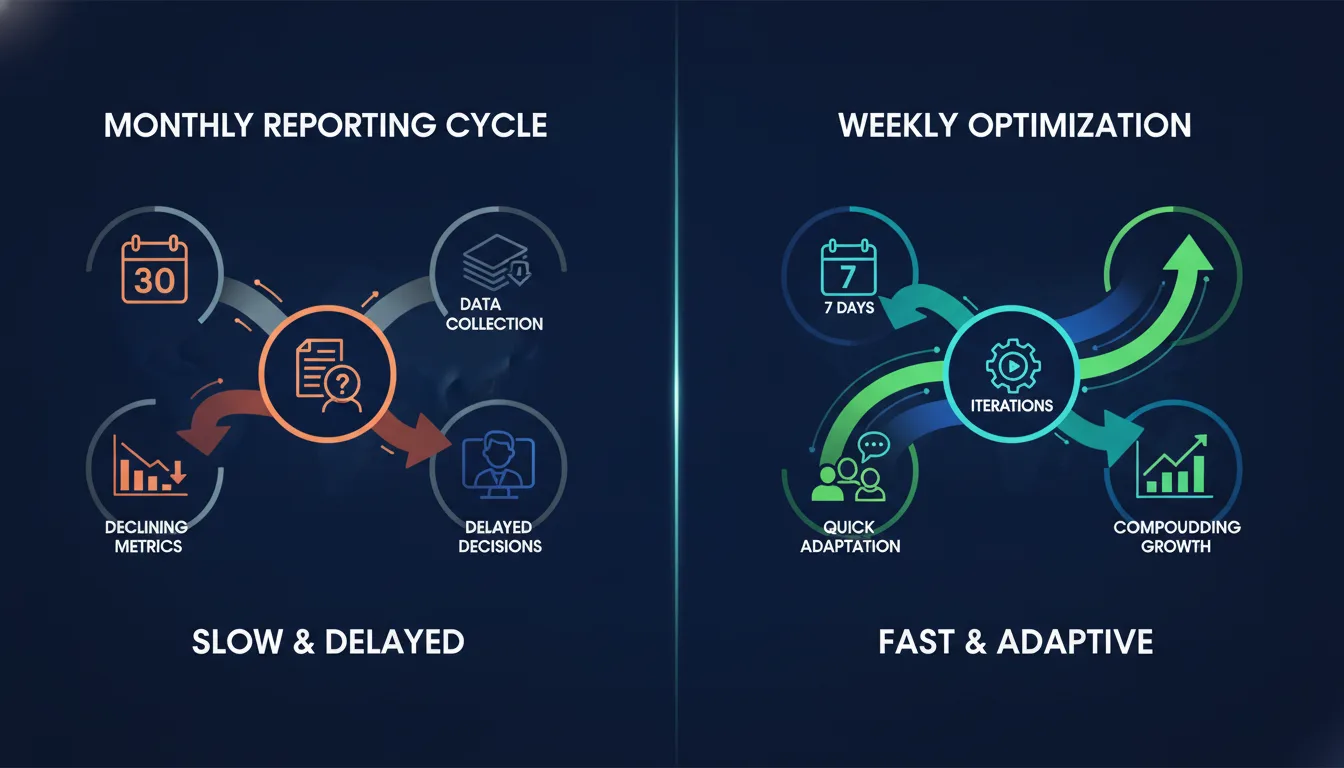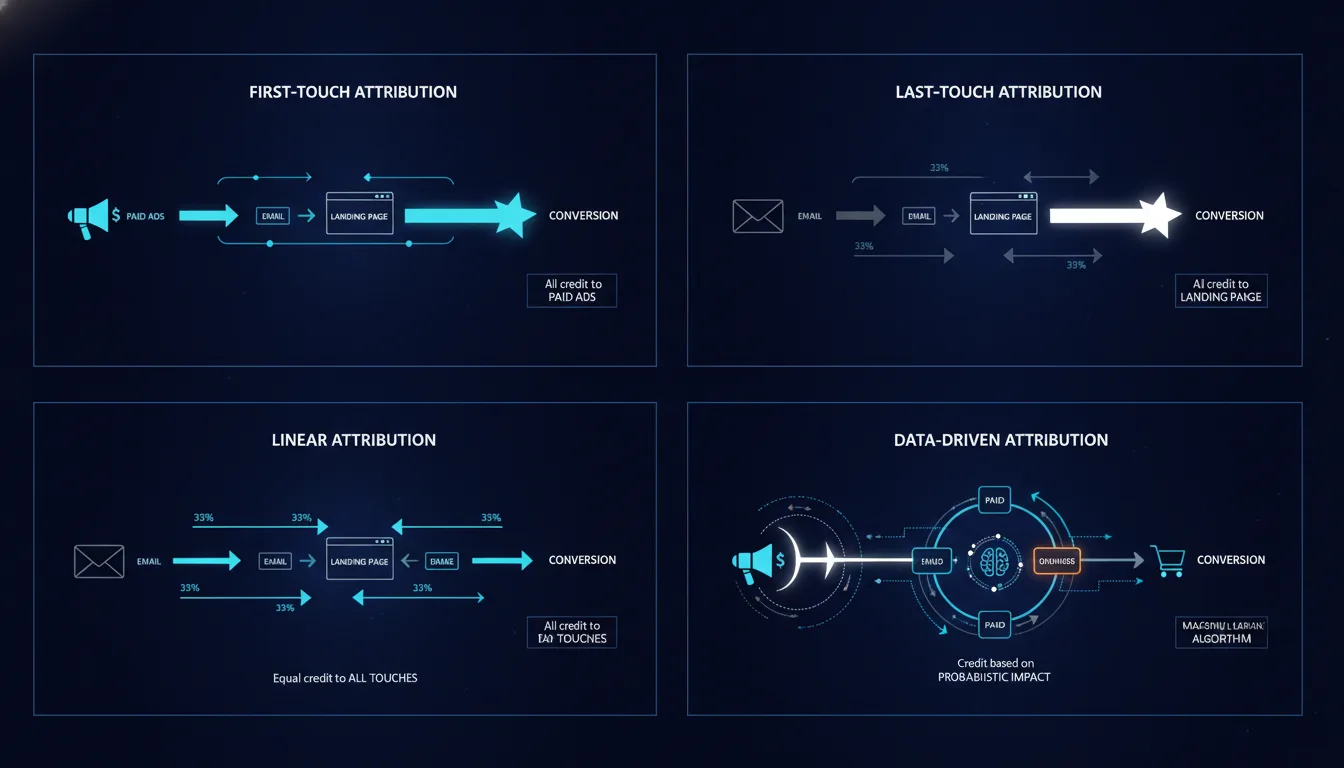
Is Your Conversion Tracking Actually Broken?
Key Takeaway: Most brands are bleeding money on ads because their conversion tracking is incomplete, misconfigured, or relies entirely on browser-based data collection. A complete conversion tracking audit takes 2–4 hours and identifies the tracking gaps costing you thousands in wasted ad spend. If you have not verified your GA4 events, GTM container, and server-side tracking setup in the last six months, you are almost certainly leaving conversions invisible to your ad platforms.
Here is what we see in most conversion tracking audits:
GA4 events are firing, but the parameters are incomplete or mislabeled
Google Tag Manager has four years of accumulated code, redundant tags, and broken triggers
Conversion data reaches GA4 but never makes it back to Google Ads or Meta with proper value attribution
Server-side tracking is not implemented, meaning mobile conversions, privacy-mode users, and ad-blocker traffic are invisible
Cross-domain tracking is broken, so customers who convert across multiple domains are counted as separate users
Consent mode is not configured, leaving compliance gaps and data loss
Each of these gaps individually costs you hundreds to thousands per month in wasted ad spend. Together, they can represent 20–40% of your actual conversion volume being invisible to your paid media optimization. You are essentially optimizing blind.
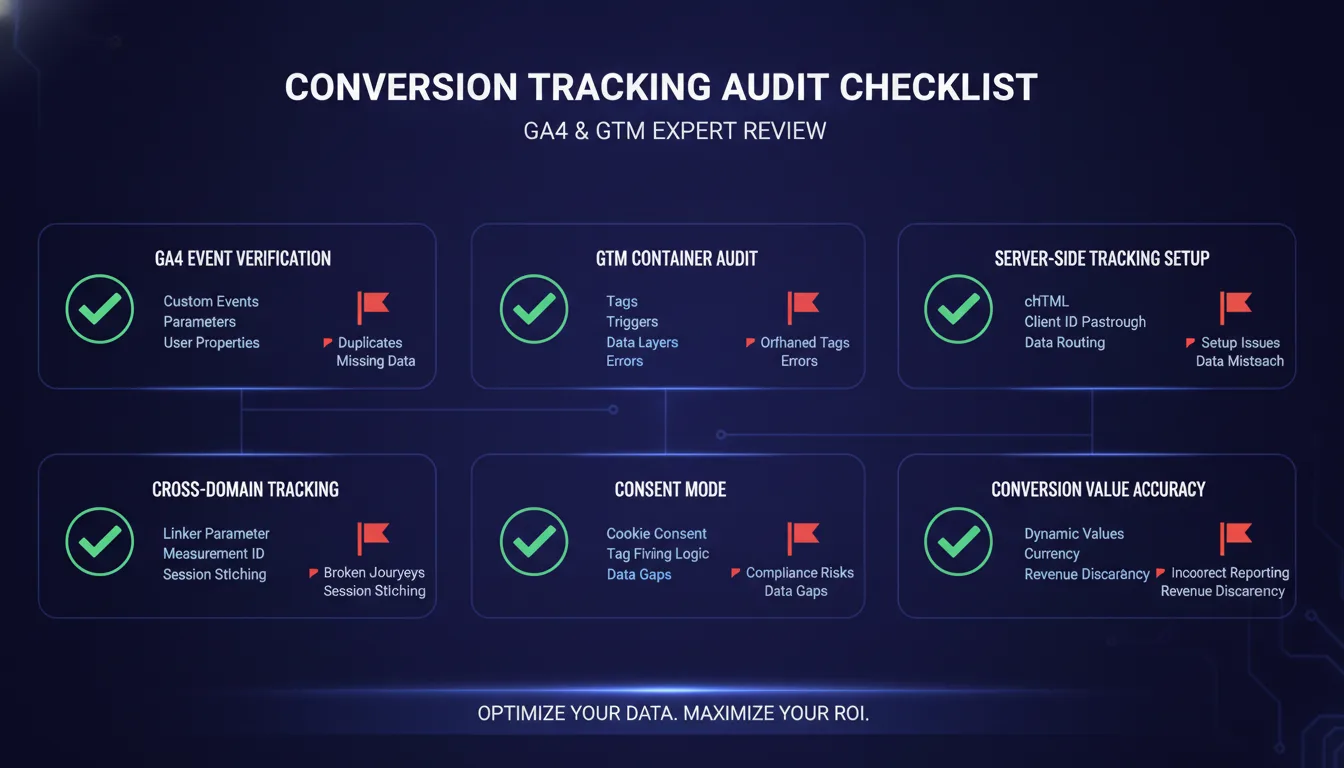
This audit checklist walks you through the verification process step by step. It takes 2–4 hours, requires no coding, and will either confirm your tracking is solid or surface specific gaps you can fix (or outsource) before another dollar is wasted.
Step 1: Audit Your GA4 Event Configuration
GA4 is your source of truth for conversion data. If the events are misconfigured at the foundation, everything downstream is corrupted.
What to verify:
Event names are standardized and documented. Open your GA4 property and navigate to Admin > Events. Look for events that should be identical but have slightly different names (e.g., "purchase", "Purchase", "buy_now"). Duplicated event names under different spellings fragment your conversion data. Document every event you track and what it represents. Use a shared spreadsheet with columns for Event Name, Trigger (what action causes it), Parameters Sent, and Business Impact.
All conversion events include required parameters. Purchase events must include transaction ID, value, and currency. Lead form submissions must include at minimum: form_name, form_field_count, and form_completion_status. Engagement events (video plays, downloads, scroll depth) must include the asset name and engagement type. Missing parameters mean you cannot segment, cannot attribute properly, and cannot build accurate audiences downstream.
Event parameters use consistent data types and formatting. If transaction value is sometimes a string ("100") and sometimes a number (100), GA4 will treat them as separate values in your reports. Currency should always be ISO 4217 format (USD, EUR, GBP, etc.). User IDs should use a consistent format (email hash, internal account ID) across all events. Check your raw event data in GA4 Realtime Report to confirm parameter consistency.
Real-time event firing is verified with GTM preview. Open Google Tag Manager in preview mode. Navigate to your website or app, trigger a conversion action (fill out a form, add to cart, complete purchase), and watch the GTM debug console. You should see the tag fire and the event hit GA4 within seconds. Check the GA4 Real Time report — the event should appear within 30 seconds. If it does not, the GTM trigger is misconfigured or the tag is not firing.

Audit checklist:
Check Item | Status | Notes |
|---|---|---|
All conversion events documented in spreadsheet | [ ] Pass [ ] Fail | |
Event names are unique and consistently spelled | [ ] Pass [ ] Fail | |
All events include required parameters | [ ] Pass [ ] Fail | |
Parameters use consistent data types and formatting | [ ] Pass [ ] Fail | |
Events fire in GTM preview and GA4 Real Time report | [ ] Pass [ ] Fail |
Step 2: Audit Your Google Tag Manager Container
GTM is the central nervous system of your tracking infrastructure. A messy GTM container creates cascading failures downstream.
What to verify:
All live tags are necessary and documented. Navigate to Tags in GTM. Count them. If you have more than 50 tags, you almost certainly have redundancy or dead weight. For every tag, ask: Is this currently being used? Has it been tested in the last 30 days? Does it have a clear business purpose? Tags that are "paused but kept for reference" should be deleted — use GTM version control to retrieve them if needed. Document each live tag in a shared spreadsheet with: Tag Name, Type (GA4, Meta Pixel, custom HTML, etc.), Trigger(s), Last Modified Date, Owner.
Triggers are specific and non-overlapping. Open each trigger and trace what it does. A trigger named "All Events" that fires on every pageview is creating noise and wasting GTM execution time. Instead, use specific triggers like "Form Submission" or "Add to Cart Click". Check for triggers that could be firing on the same action (e.g., two different form submission triggers for the same form) — this creates duplicate events.
Variables are consistently named and used. GTM variables store values (like form submission source, user ID, transaction value) that are then passed to tags and events. Navigate to Variables. Look for duplicates or similar names that should be consolidated. Document what each variable is supposed to capture and verify it is being populated with the correct value using GTM preview mode.
The container has no errors in the version history. Navigate to Version History. The most recent published version should have a clear description (e.g., "Added Stripe payment tracking on checkout page"). If recent versions show vague notes like "Updates" or no notes at all, it indicates unclear change management. Check for versions that were published and then quickly rolled back — this signals a tracking issue that was introduced and then caught. Review the changelog for the last 90 days to confirm all changes are intentional and documented.
Audit checklist:
Check Item | Status | Notes |
|---|---|---|
All live tags documented and currently in use | [ ] Pass [ ] Fail | |
No duplicate or overlapping triggers | [ ] Pass [ ] Fail | |
Variables are named consistently and tested | [ ] Pass [ ] Fail | |
Version history shows clear, recent change notes | [ ] Pass [ ] Fail | |
Container loads without JavaScript errors | [ ] Pass [ ] Fail |
Step 3: Verify Server-Side Tracking Implementation (Critical)
This is where most audits identify the biggest gap. Server-side tracking is not optional — it is non-negotiable for accurate conversion data in 2026.
Why server-side tracking matters: Browser-based tracking (the default GA4 setup) relies on cookies and browser storage. But 40% of users browse in private mode, use ad blockers, or have strict privacy controls enabled. These conversions are invisible to your browser-based setup. Additionally, privacy regulations like GDPR and CCPA require that conversion data be captured server-side to ensure compliance. Server-side tracking captures conversion events from your backend, outside the browser, and forwards them to Google Ads, Meta, and GA4 with full context intact.
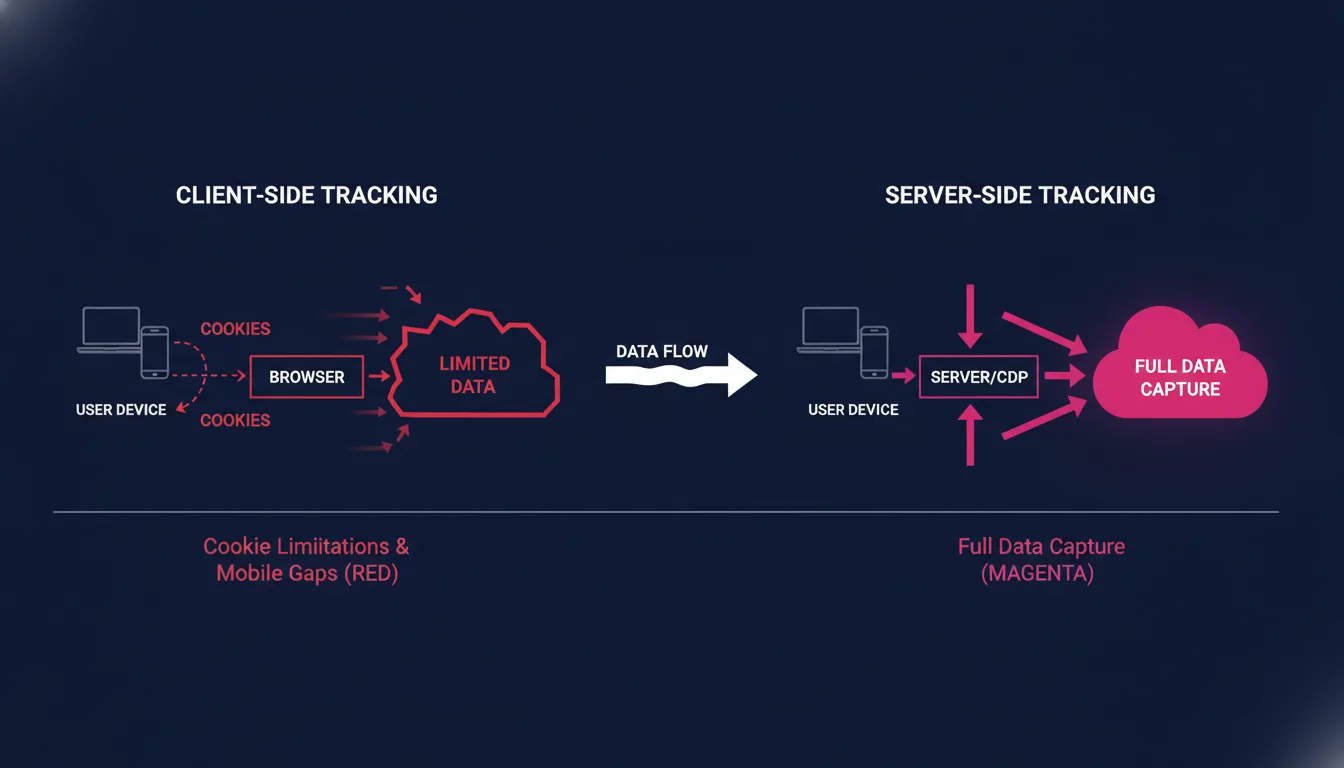
What to verify:
Google Tag Manager Server Container is active. In GTM, check if you have a Server Container configured. If not, you do not have server-side tracking. If you do have one, navigate to Admin > Environments and confirm there is a "Server" environment with a valid tagging server endpoint (it will be a Google-managed URL). Test it by sending a request to that endpoint — Google provides documentation for testing payloads.
Conversion events are being sent from your backend to GTM Server Container. This requires your development team to send conversion data (purchase events, lead form submissions, etc.) from your server or e-commerce platform directly to GTM Server Container via HTTP POST. Audit with your developer: Are purchase confirmations being logged server-side and forwarded? Are form submissions being captured from your backend, or only from browser JavaScript? Each conversion should have a server-side source of truth.
Server-side events include full context (user ID, value, etc.). Verify that server-side events include: a user identifier (hashed email, customer ID, or cross-site ID), conversion value, currency, and transaction ID (for purchases). These parameters must be consistent with the browser-based events so that GA4 can deduplicate and properly attribute.
Server-side data is flowing to your ads platforms. In Google Ads, navigate to Tools & Settings > Conversions. Check that conversion events are being recorded. Use the Conversion Tracking Debug tool (in Google Ads) to verify that a test purchase is being logged and attributed correctly to a conversion action. Do the same in Meta Ads Manager under Events Manager — conversions from server-side setup should appear with "Server" as the source.
Audit checklist:
Check Item | Status | Notes |
|---|---|---|
GTM Server Container is configured and active | [ ] Pass [ ] Fail | |
Backend is sending conversion events to GTM Server | [ ] Pass [ ] Fail | |
Server-side events include full context and parameters | [ ] Pass [ ] Fail | |
Conversion data reaches Google Ads and Meta Ads Manager | [ ] Pass [ ] Fail |
Step 4: Verify Cross-Domain Tracking and Multi-Touch Attribution
If you own multiple domains or subdomains, or if customers convert across your website and a third-party platform (like a booking engine or payment processor), cross-domain tracking must be configured.
What to verify:
All owned domains and subdomains are listed in GA4. In GA4, navigate to Admin > Data Streams. For each domain or subdomain (e.g., www.yoursite.com, blog.yoursite.com, app.yoursite.com), confirm there is a data stream. If subdomains are not listed, GA4 will treat them as separate properties and you will lose user context across them.
GA4 is configured to recognize cross-domain visitors as a single user. This requires setting a User ID or enabling Cross-Domain Reporting. Navigate to Admin > Data Settings > Cross-Domain Tracking. Confirm it is enabled and all domains are listed. If you have a login system, implement User ID tracking so that the same logged-in user across multiple domains is recognized as one person in GA4.
Google Ads conversion tracking includes cross-domain context. When setting up conversion actions in Google Ads, the conversion tag must be able to pass user identity across domains. Use the Global Site Tag (gtag.js) with User ID or cross-domain configuration so that when a user clicks an ad, converts on a partner domain, and then returns to your main site, Google Ads credits all conversions to the original click.
UTM parameters and source data are preserved across domains. Create a test customer journey: Click a test ad with UTM parameters (utm_source, utm_medium, utm_campaign), navigate to your main domain, then navigate to a subdomain or partner domain, then convert. In GA4 Realtime Report, verify that the conversion is attributed to the correct source/medium/campaign — not to direct or referral. If UTM data is lost, your attribution will be wrong.

Audit checklist:
Check Item | Status | Notes |
|---|---|---|
All owned domains and subdomains have GA4 data streams | [ ] Pass [ ] Fail | |
Cross-domain tracking is enabled in GA4 | [ ] Pass [ ] Fail | |
User ID tracking is implemented (if login exists) | [ ] Pass [ ] Fail | |
Conversions across domains attribute to correct source | [ ] Pass [ ] Fail |
Step 5: Audit Consent Mode and Privacy Compliance
Google Consent Mode is required to comply with GDPR and other privacy regulations, and it is now a ranking factor in Google Search. If you are not using Consent Mode v2, you are at legal risk and losing traffic.
What to verify:
Consent Mode v2 is implemented on your website. In GTM, check if you have a "Consent Initialization - Ads Storage" tag or similar. Load your website in a browser and open the browser DevTools > Application > Cookies. Look for a cookie named something like "consent" or "cookie_consent" that contains values for ad_storage, analytics_storage, and ad_user_data. If this cookie does not exist, Consent Mode is not configured.
Consent preferences are being collected and stored correctly. Most websites use a cookie banner or consent preference center. Verify that when a user denies consent, GA4 events are still fired but marked with a "denied" flag. When consent is granted, events should be marked "granted". Use GTM preview to confirm the consent flags are being sent with each event.
Ads platforms are respecting consent settings. In Google Ads, navigate to Tools & Settings > Conversions and check that the Conversion Tracking Tag is configured with consent. When users deny consent, the tag should not fire. When users grant consent, it should fire normally. Test this by clearing cookies, revisiting your site, and denying consent in the banner — then completing a conversion. Check if it is recorded in Google Ads (it should not be).
Your privacy policy reflects your consent and tracking practices. Your privacy policy should explicitly state: which data is collected, how long it is retained, which third parties receive it (Google, Meta, etc.), and what user rights exist. If your policy does not mention Google Analytics, GTM, or Meta Pixel, it is incomplete and creates legal liability.
Audit checklist:
Check Item | Status | Notes |
|---|---|---|
Consent Mode v2 is implemented and firing | [ ] Pass [ ] Fail | |
Consent preferences are collected and stored in cookies | [ ] Pass [ ] Fail | |
Ads platforms respect consent settings (tested) | [ ] Pass [ ] Fail | |
Privacy policy documents all tracking and retention | [ ] Pass [ ] Fail |
Step 6: Verify Conversion Value Accuracy in Your Ads Platforms
Conversions mean nothing if the values are wrong. If Google Ads thinks a conversion is worth $5 when it is actually worth $50, your bidding will be completely miscalibrated.
What to verify:
Conversion values are flowing from GA4 to Google Ads with correct revenue data. In Google Ads, navigate to Tools & Settings > Conversions. Select a conversion action and look at the "Average conversion value" field. This should match your actual average order value or lead value. If it shows "$0" or a wildly incorrect number, conversion values are not being passed from GA4.
E-commerce platforms are sending transaction-level value data. If you use Shopify, WooCommerce, BigCommerce, or a custom checkout, verify that the order value is being captured and sent to GA4 and your ads platforms. In GA4, navigate to Monetization > eCommerce purchases. Look at the "Purchase Revenue" metric. It should match your actual revenue from the same period. If the number is low or zero, the purchase event is not capturing value correctly.
Lead form values are assigned and consistent. For B2B businesses that generate leads (not e-commerce sales), each conversion action should have an assigned value. In Google Ads, navigate to Conversions and set a "Value per conversion" for each lead type (demo signup = $100, whitepaper download = $25, etc.). This value should be based on your historical data: average deal size / average sales cycle length, or your cost-per-acquisition target. Without assigned values, Google Ads cannot optimize for revenue.
Currency is consistent across GA4, Google Ads, and Meta Ads Manager. If your business operates in multiple currencies, ensure that all conversion values are in the same currency before being sent to your ads platforms. Mixing USD and EUR will corrupt your ROAS calculations. In GA4, set a default currency in Admin > Property Settings. In Google Ads and Meta, confirm the currency setting matches.
Audit checklist:
Check Item | Status | Notes |
|---|---|---|
Conversion values reach Google Ads with correct revenue | [ ] Pass [ ] Fail | |
E-commerce purchase values match actual revenue | [ ] Pass [ ] Fail | |
Lead form values are assigned based on business data | [ ] Pass [ ] Fail | |
Currency is consistent across all platforms | [ ] Pass [ ] Fail |
Common Tracking Gaps and Their Business Impact
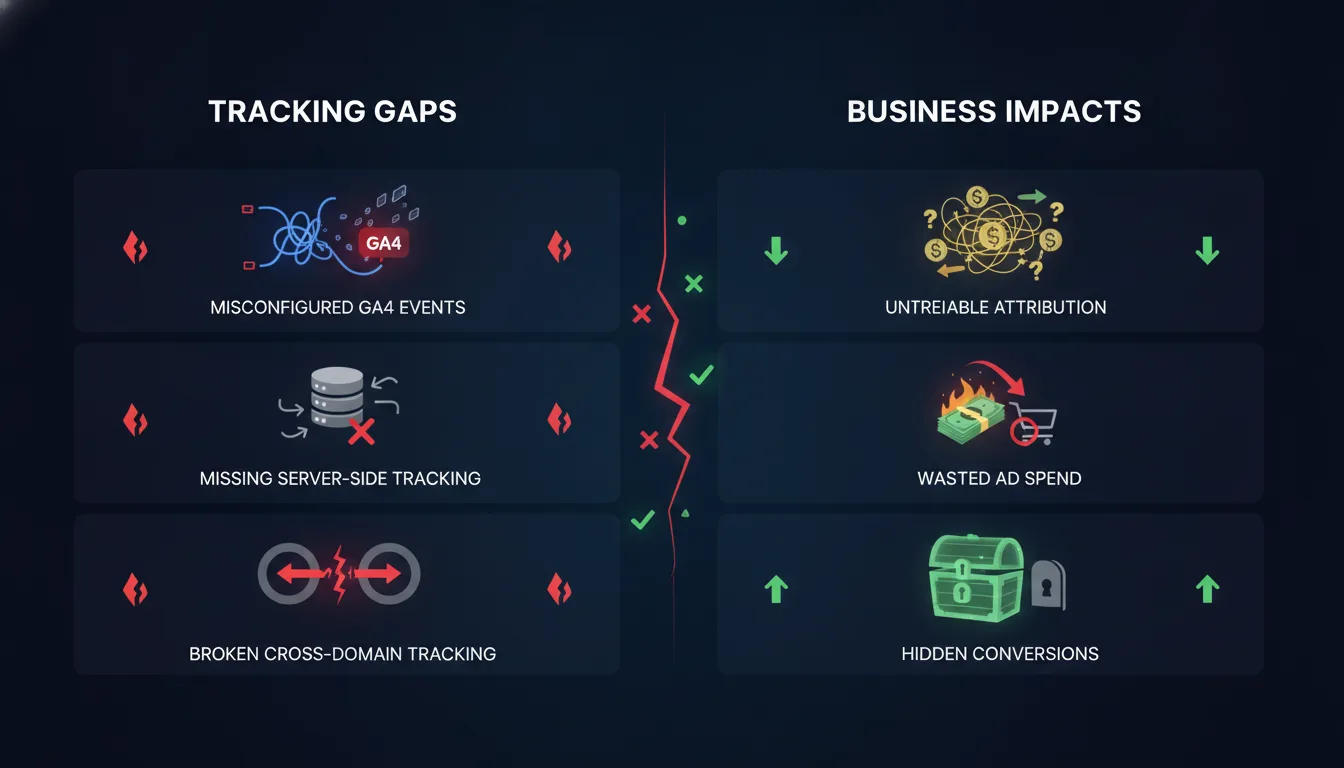
Here is a reference table of what we most commonly find during conversion tracking audits, and what each gap costs:
Tracking Gap | Symptom | Business Impact | Estimated Cost (Monthly) |
|---|---|---|---|
GA4 events misconfigured | Events fire but parameters are incomplete; reports show no revenue data | Cannot segment users by value; cannot build audiences; reporting is useless | $500–$2,000 |
Server-side tracking missing | GA4 conversion count is much lower than actual business conversions | 20–40% of conversions invisible; ad platforms cannot optimize; ROAS looks better than it is | $1,000–$4,000 |
Cross-domain tracking broken | Users who convert across multiple domains appear as multiple sessions in GA4 | Attribution is fragmented; customer journey cannot be understood; cannot optimize funnel | $500–$2,000 |
Conversion values incorrect or missing | Google Ads average conversion value shows $0 or wildly incorrect amount | Bidding is not calibrated to actual revenue; unprofitable campaigns continue; profitable ones underfunded | $2,000–$6,000 |
Consent mode not implemented | No consent cookie; GA4 and ads tags fire regardless of user consent | Legal compliance risk; data loss as privacy-conscious users opt out; potential penalties | Regulatory exposure |
These are not theoretical costs. Based on the average conversion tracking gaps we find in audits, most companies are wasting $2,000–$6,000 per month in ad spend on blind optimization.
What to Do If You Find Gaps
If your audit identifies gaps, here is the recommended remediation path:
Critical gaps (fix immediately): Server-side tracking missing, conversion values not flowing to ads platforms, consent mode not implemented. These are costing you the most money and creating the most risk. Budget 2–4 weeks for implementation with your development team or an external partner. Cost: $2,500–$5,500+ depending on complexity.
High-priority gaps (fix within 30 days): GA4 event parameters incomplete, GTM container has redundant tags, cross-domain tracking misconfigured. These are degrading data quality. Budget 1–2 weeks and can often be handled by an analytics specialist without developer support.
Medium-priority gaps (address within 60 days): Consent mode v2 not fully rolled out to all subdomains, event naming inconsistencies, user ID tracking not implemented. These reduce data richness but are not immediately bleeding money. Can be handled incrementally.
If you lack the internal resources to fix these gaps, a conversion tracking audit and remediation engagement with a managed marketing infrastructure partner typically costs $2,500–$5,500+ and saves 10–15x that amount in recovered ad spend within 90 days.
Key Tracking Audit Statistics
According to Analytics Mania's GA4 setup studies, 73% of GA4 implementations have at least one critical tracking gap. Simo Ahava's research on conversion tracking shows that companies with fully implemented server-side tracking see 25–30% more conversions visible in their reporting compared to browser-only setups. The Google Analytics official documentation notes that Consent Mode v2 is now a ranking factor, and sites without it will experience organic traffic loss. Additionally, MarTech.org tracking standards research indicates that 68% of B2B companies incorrectly value their leads, leading to budget allocation errors.
Frequently Asked Questions
What is a conversion tracking audit?
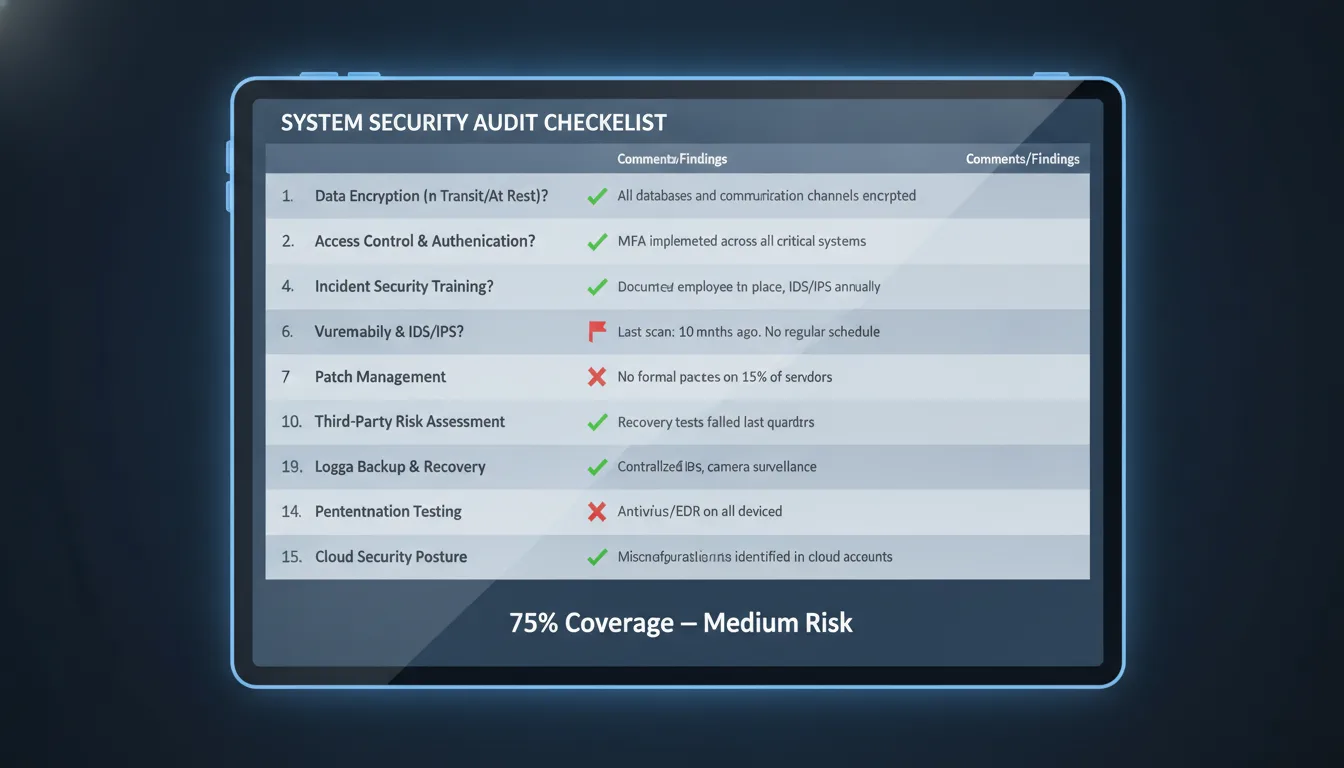
A conversion tracking audit is a systematic review of your GA4 configuration, Google Tag Manager setup, server-side tracking implementation, cross-domain tracking, consent mode, and conversion value accuracy. It identifies gaps where conversion data is not being captured, is misconfigured, or is not flowing to your ads platforms correctly. Most audits uncover $2,000–$6,000+ in monthly wasted ad spend.
How long does a conversion tracking audit take?
A thorough audit takes 2–4 hours for a single website or funnel. If you operate across multiple domains, use custom tracking, or have complex e-commerce setups, add another 1–2 hours. The six-step process in this guide can be completed by someone with basic GA4 and GTM knowledge, though developer support is needed to verify server-side implementation.
Do I need a developer to fix conversion tracking gaps?
Not always. GA4 event configuration, GTM audits, and cross-domain setup can be handled by an analytics specialist. However, server-side tracking implementation, custom event parameters, and API integrations typically require developer support. Budget 1–2 weeks for a developer to implement server-side tracking if it is missing.
How often should I audit my conversion tracking?
Quarterly is standard. If you make significant changes to your website, checkout flow, or funnels, audit immediately after. Any time you make changes to GTM tags or GA4 configuration, run a quick verification that conversions are still firing correctly. Tracking is not a set-it-and-forget-it system — it degrades over time.
What is server-side tracking and why do I need it?
Server-side tracking captures conversion events from your backend and sends them to Google Ads, Meta, and GA4 directly, rather than relying on browser-based JavaScript and cookies. It is essential because 40% of users have privacy controls enabled that block browser-based tracking. Without server-side setup, you are missing 20–40% of your actual conversions.
How do I know if my conversion tracking is working?
Open Google Ads > Tools & Settings > Conversions. Check if conversions are being recorded and if the "Average conversion value" is a reasonable number (matches your actual business data). If conversions show "0" or are missing, tracking is broken. Use the GA4 Real Time report to verify events are firing when you trigger test conversions on your website.
What is Consent Mode v2 and do I need it?
Consent Mode v2 is Google's framework for respecting user consent preferences while still collecting anonymized data. It is now mandatory for GDPR compliance and is a Google Search ranking factor. Without it, you are at legal risk. With it, you capture data from all users, even those who deny consent (just in a privacy-safe way).
Can I fix conversion tracking gaps myself?
You can identify gaps using this checklist. Fixing them depends on the gap. GA4 configuration issues can be fixed by someone with GTM experience. Server-side tracking requires developer work. If you do not have the time or expertise, a managed marketing infrastructure partner can audit and fix gaps in 2–4 weeks for $2,500–$5,500+.
Ready to Clean Up Your Conversion Tracking?
Run this audit this week. The six-step checklist above will either confirm your tracking is solid or surface the specific gaps costing you thousands in wasted ad spend. Most gaps are fixable in 2–4 weeks with the right resources.
If you identify gaps and need help fixing them, start a conversation with Metrics Masters. We specialize in conversion tracking audits and server-side tracking implementation as part of our managed marketing infrastructure engagements. Our Brand Technical Experts will audit your setup, document findings, and implement fixes so that every dollar of ad spend is tracked with precision.
Learn more about our approach to conversion tracking and attribution, or read our complete guide to server-side tracking implementation in 2026.

Jeremiah Shaw
CEO & Technical Marketing Specialist · Metrics Masters | Brandlio
International
Technical marketing specialist pushing boundaries in Google Ads, automation, and AI-driven growth systems. Paragliding and adventure enthusiast.